
Turn an asset list into a batch QR kit
A batch is useful when the asset information already exists in a spreadsheet. Prepare a small, checked list first, paste its CSV text into the tool, and keep the exported register with the printed labels. The goal is reliable row-to-label matching, not simply producing many images.
Prepare the five input columns
Use the headers id,name,location,url,action. The equipment name is required; the other columns can be left blank. A blank URL creates a public asset card, so decide deliberately whether you want that or an external equipment record. The tool accepts up to 20 rows per create operation and a request below 64 KiB.
| Column | Use and limits |
|---|---|
| id | Up to 32 characters; begin with a letter or number, then letters, numbers, hyphens or underscores. Missing IDs are generated. |
| name | Required equipment name, up to 60 characters. |
| location | Optional visible location, up to 60 characters; this does not track movement. |
| url | Complete public HTTP or HTTPS destination; prefer HTTPS. Blank means a public asset card. |
| action | Short scan instruction, up to 70 characters; a default is supplied if blank. |
Start with a fictional example
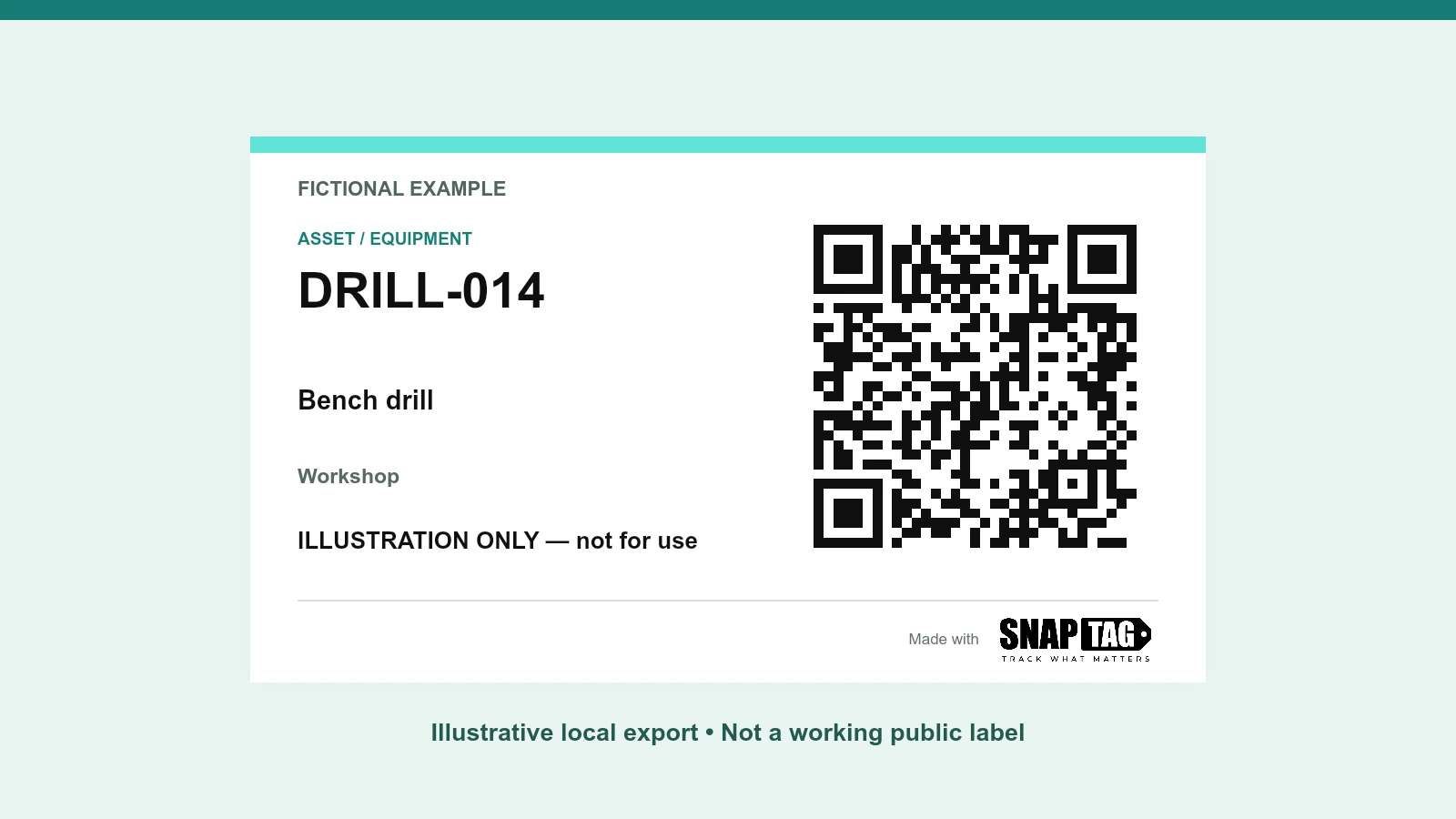
This downloadable CSV demonstrates the column order. The example.com addresses are documentation placeholders, not live equipment records. Replace every fictional item and URL with information you have checked before creating labels for actual use. Keep the header names in English even when the cell values are Spanish.
Three-row input example
id,name,location,url,action
DRILL-014,Bench drill,Workshop,https://example.com/equipment/drill-014,Open equipment record
VAC-022,Workshop vacuum,Workshop,https://example.com/equipment/vac-022,Open equipment record
CART-008,Tool cart,Tool store,https://example.com/equipment/cart-008,Open equipment recordClean the list before creating codes
Preserve identifiers as text so leading zeros survive spreadsheet editing. Give each item a distinct ID; duplicates differing only in capitalization are rejected. Check commas and quotation marks in exported CSV, remove empty rows, and review every destination on a phone with the intended access permissions.
- Do not put confidential asset information in a public card. A hard-to-guess tag address is not a login boundary.
- Split lists longer than 20 into smaller batches and keep your own batch name or date for reconciliation.
- Check that links refer to the specific equipment or form required; a correct code cannot repair an incorrect destination.
Paste CSV text and review the parsed rows
In Asset & equipment tags, choose “Paste a list / CSV” and paste the text, including the header row. This is a text-paste workflow, not a spreadsheet-file upload. Review the parsed rows before creating. An invalid row blocks the creation request; the tool does not silently create only the valid portion.
Keep input data and the export register distinct
The QR encodes a managed SNAPTAG Tag URL. The original external address appears separately as the Destination link. The printable ZIP contains one PNG per label ID, print-sheet.pdf, label-register.csv and READ-ME.txt. The PDF follows the row order and continues onto additional pages when needed.
The output register uses different headers from the input template. Do not paste it back as though it were the same format. Spreadsheet formula-like text is prefixed with an apostrophe for safety. Keep an unchanged copy of your reviewed source list and the export together.
| Column | What it identifies |
|---|---|
| Label ID, Name, Location | The item and visible label text. |
| Destination link | Original external address; blank for a public asset card. |
| Tag URL | The managed address actually encoded in the QR. |
| PNG filename | The corresponding printable label image. |
| Scan message | The instruction printed on the label. |
Reconcile the whole batch before use
Compare the row count, PNG filenames, printed IDs and destinations. Print one proof at actual size, then check every installed label against its physical item. Use your own acceptance list for checker, date and result. A register maps files; it does not confirm that each label was printed, attached or scanned.
The source row, printed ID, encoded tag address and destination should remain traceable as one record.
A checked source list and the exported register make a batch maintainable. If an item or destination changes, review the replacement as a new label and keep the old-to-new mapping in your own records.
Sources & Further Reading
Authoritative references used to frame this guide. Confirm the requirements that apply to your operation and jurisdiction.
Put the guide into practice
Prepare one example, check the result, and expand after validating each step.
Create a batch QR kitReview equipment printing