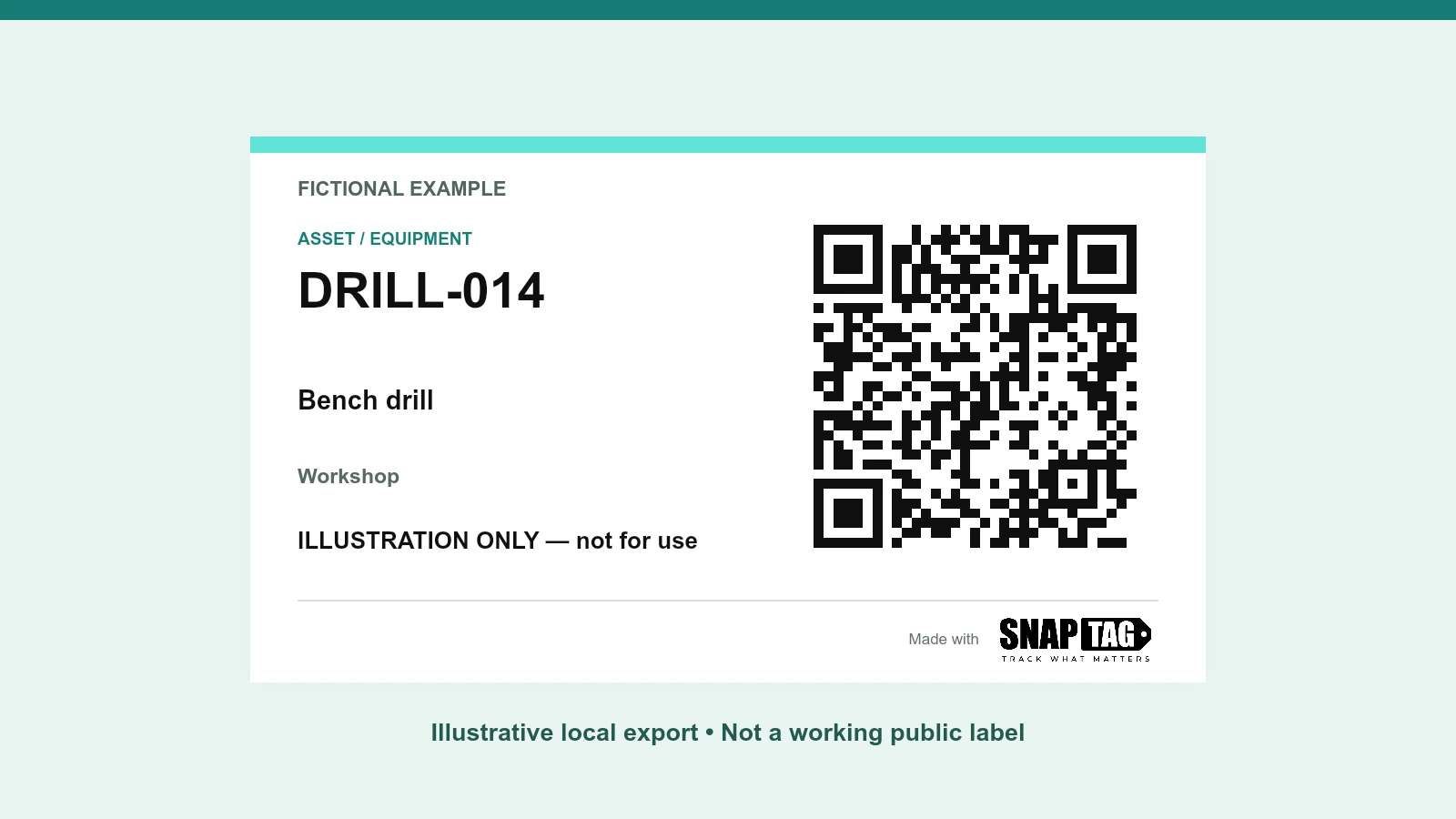

How to create and print equipment QR labels
Start with one item and one useful destination. An equipment QR label can open a manual, an equipment record or a maintenance form on a phone. The Free Business QR Kit adds a visible identifier and a printable layout so staff can confirm which item they are scanning. It does not sense temperature, locate equipment or record completed maintenance by itself.
Give the label one clear job
Choose the information someone needs beside the equipment. A model manual helps with operating instructions; a record for a particular asset helps with its history; an existing form can collect an inspection or issue report. Test the destination on a phone using the access available to the people who will scan it.
- Use a complete HTTPS address and keep the destination available. A QR code does not bypass sign-in or document permissions.
- For a maintenance form, use a destination that identifies the equipment, such as a supported prefilled form URL. Printed text is not automatically submitted into a form.
- In Asset & equipment tags, leaving the link blank creates a public asset card. Keep confidential information out of that card; possession of a QR code is not an access control.
Create one code and check the match
Open Asset & equipment tags, enter a stable label ID, equipment name, location and scan message, then create the code. The QR contains a managed SNAPTAG tag address. With a destination, that address redirects to the saved link; without one, it opens the asset card. Check that the equipment, visible ID and opened information agree before printing.
Keep the code and its margin readable
DENSO WAVE specifies a clear margin four modules wide around a QR symbol. Keep that quiet zone intact when laying out, cutting or attaching the label. Use strong contrast and preserve the square shape; stretching, cropping and placing text over the code can make it harder to read.
- Keep the ID and a short action visible so a person can confirm the item even before scanning.
- Choose a size that works with the intended phone, distance, lighting, print quality and label material. There is no single minimum size that guarantees every installation.
- Keep the code on a flat, visible area. Check glare, curves, dirt and abrasion; do not cover equipment instructions or safety markings.
Print one proof before the batch
Use the bare QR PNG when you are placing the code in an existing layout. For a finished label, download the printable ZIP: it contains label PNGs, print-sheet.pdf, a CSV register and instructions. Select A4 or US Letter and print the PDF at actual size / 100%. Turn off automatic “fit to page” scaling and check the physical result.
| Layout | Physical size | Items per full sheet |
|---|---|---|
| Compact | 88.9 × 50.8 mm / 3.5 × 2 in | 8 |
| Label | 76.2 × 101.6 mm / 3 × 4 in | 4 |
| Sign | 152.4 × 203.2 mm / 6 × 8 in | 1 |
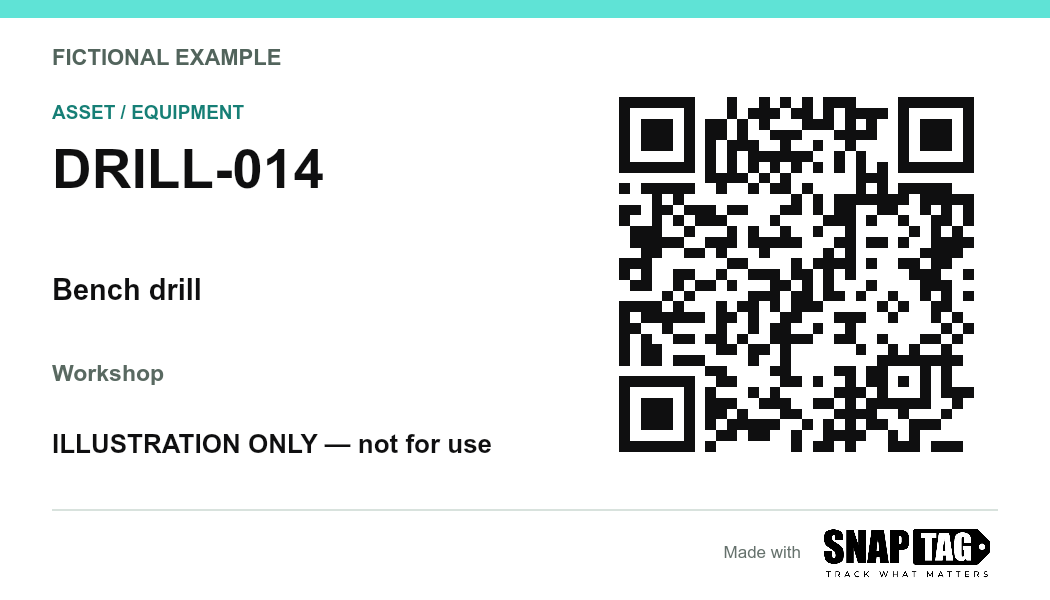
Download the illustrative A4 print sheet (PDF; not for operational use)
Accept each label on the actual equipment
Scan the proof after it is attached, using the phones and lighting expected in daily work. Confirm the physical item, printed ID and destination together. For a batch, perform that match for every row; one readable sample cannot confirm all destinations.
- Record the label ID, date checked, destination and person responsible in your own acceptance list.
- Recheck when a label is damaged or replaced, or when the destination content or permissions change.
- Use completed form submissions or equipment records to confirm work. Tag-open counts only show recorded requests.
A useful equipment label connects the right physical item to the right information, every time someone needs it.
Once the first label passes the physical-item and destination checks, repeat the same acceptance process for the rest. Keep the export register with your source list so replacement labels remain traceable.
Sources & Further Reading
Authoritative references used to frame this guide. Confirm the requirements that apply to your operation and jurisdiction.
Put the guide into practice
Prepare one example, check the result, and expand after validating each step.
Create equipment QR labelsPrepare a batch QR kit